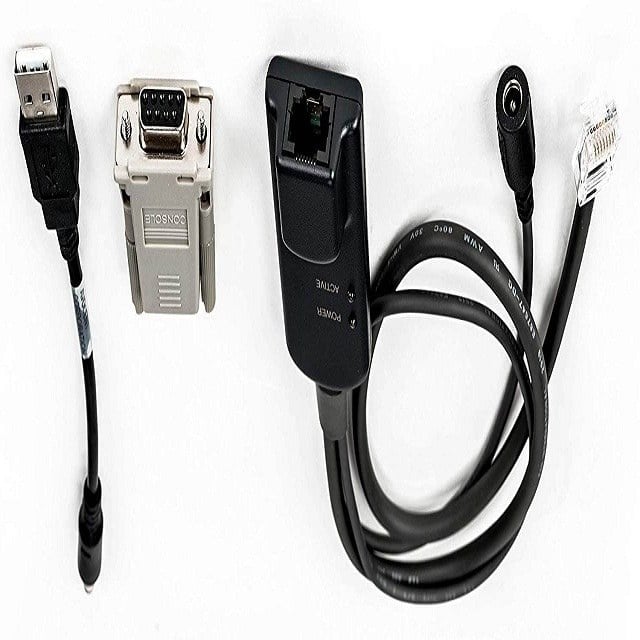
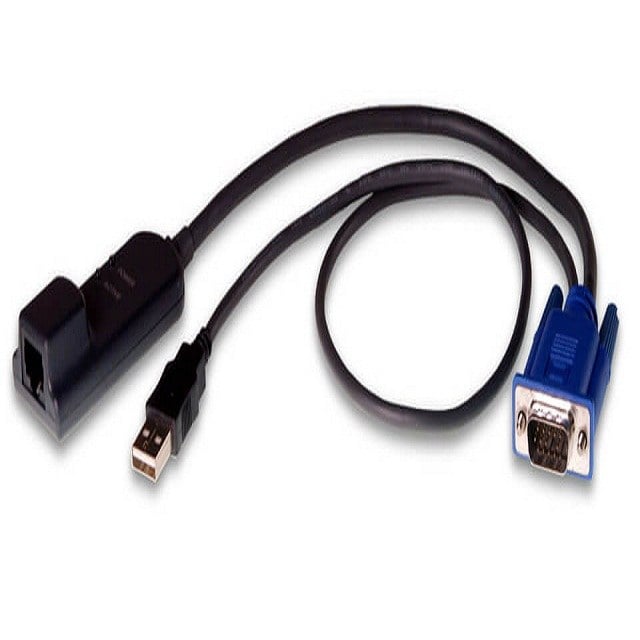
AVRIQ-USB Avocent Server Interface Module USB KVM Adapter Extender External | New Bulk Pack
$58.49
$85.4
Description Features and Benefits of USB KVM Adapter away from the server or computer, providing greater flexibility and accessibility for users. KVM Support: The adapter supports KVM (Keyboard, Video, Mouse) functionality, allowing users to control multiple servers or computers from one location. High-Quality Video: The AVRIQ-USB supports high-quality video resolution up to 1600×1200, providing clear and detailed images for users. Compact Design: The adapter has a compact design, making it easy to install and saving space in the server room. Plug-and-Play: The AVRIQ-USB is plug-and-play, making it easy to set up and use without the need for additional software or drivers. Compatibility: The adapter is compatible with a wide range of servers and computers, making it a versatile solution for many different applications. Durable: The AVRIQ-USB is built to last, with durable construction and a sturdy design that can withstand the rigors of daily use. Cost-Effective: The AVRIQ-USB is a cost-effective solution for extending USB and KVM functionality, providing users with a high-quality experience at an affordable price. Setting Up and Configuring Connect the AVRIQ-USB to the USB port of your computer or server. Connect the other end of the AVRIQ-USB to the KVM switch or console. Power on the computer or server and the KVM switch or console. Configure the computer or server’s BIOS settings to recognize the AVRIQ-USB as a USB device. This can typically be done by going into the BIOS settings and selecting the “USB Configuration” or “USB Device Configuration” option. Configure the KVM switch or console to recognize the AVRIQ-USB as a USB device. This can typically be done by going into the KVM switch or console’s settings and selecting the “USB Configuration” or “USB Device Configuration” option. Test the AVRIQ-USB by switching between the computer or server and the KVM switch or console to ensure that the connection is working properly. If necessary, configure additional settings such as video resolution or keyboard/mouse settings to optimize the performance of the AVRIQ-USB. Once the AVRIQ-USB is configured and working properly, it can be used to remotely access and control the computer or server via the KVM switch or console. Troubleshooting AVRIQ-USB Issues Troubleshooting AVRIQ-USB issues of the AVRIQ-USB Avocent Server Interface Module USB KVM Adapter Extender External can be a bit tricky, but there are a few things you can try to fix the problem. Here are some steps you can take to troubleshoot AVRIQ-USB issues: Check the connections: Make sure that all of the connections between the AVRIQ-USB, the server, and the KVM are secure and properly plugged in. Make sure that the USB cable is connected to the correct port on the server. Restart the server: Sometimes, a simple restart of the server can fix AVRIQ-USB issues. Try restarting the server and see if the problem is resolved. Update the firmware: Make sure that the firmware on the AVRIQ-USB is up-to-date. If it is not, you can download the latest firmware from the Avocent website and update the device. Check the drivers: Make sure that the drivers for the AVRIQ-USB are installed and up-to-date. If they are not, you can download the latest drivers from the Avocent website and install them. Check the cables: Check the cables for any damage or wear. If there is any damage, replace the cables. Try a different KVM: If none of the above steps work, try using a different KVM. This will help you determine if the problem is with the AVRIQ-USB or the KVM. Main Information about this Avocent AVRIQ-USB Manufacturer: Avocent Model Number or SKU# AVRIQ-USB Product Type: KVM USB Cable Networking for KVM USB Adapter Connectivity Technology: Wired Expansion / Connectivity: Interfaces: 1 x network – RJ-45 female 1 x VGA – HD-15 female 1 x USB keyboard female 1 x USB mouse female Compatibility of External USB Cable Avocent AutoView 1000R, 1400, 1500, 2000, 2000R, 2020, 2030